
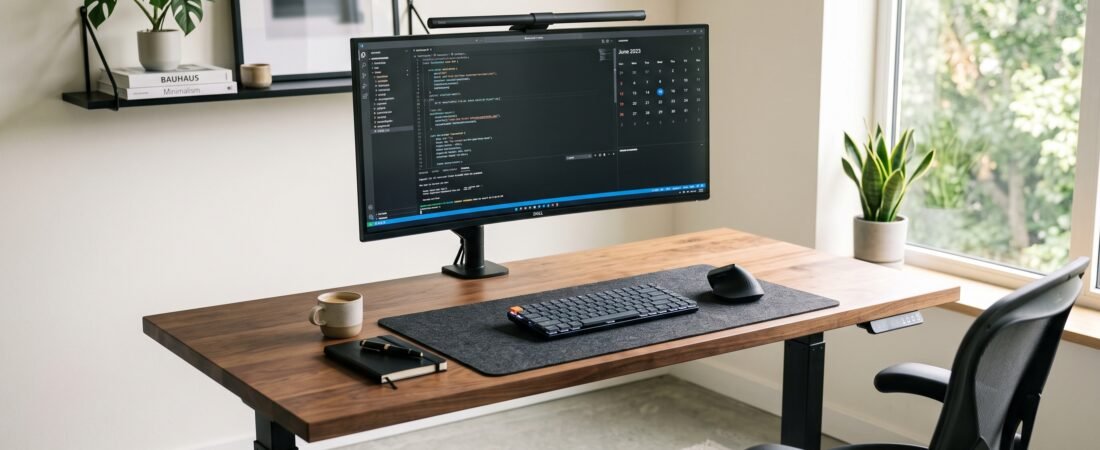
Looking for an actionable minimalist desk setup checklist? Aesthetic workspace trends can make modern setups look effortless on social media, but buying accessories all at once can quickly add clutter without improving how you work. Guidance from the Mayo Clinic on office ergonomics highlights the importance of comfortable monitor, keyboard, and workstation positioning. True minimalism isn’t about owning zero items—it is about keeping the tools that support your workflow, comfort, and organization during long work sessions.
Minimalist Ergonomic Essentials at a Glance
- Ergonomic Core: Heavy-Duty Single Monitor Arm — Useful for positioning a monitor at a comfortable viewing height and freeing desk space.
- Peripheral Alignment: Low-Profile Mechanical Keyboard — Compact footprint that leaves more room for your mouse.
- Under-Desk Zero Clutter: Clamp-On Cable Management Tray — Helps keep power bricks and cables organized under the desk.
- Asymmetrical Lighting: Monitor Light Bar with Auto-Dimming — Can help limit screen reflections while saving desk space.
- Workspace Boundary: Dual-Sided Minimalist Desk Mat — Frames your active zone and deadens typing acoustics.
In This Minimalist Desk Setup Checklist
- 1. The Minimalist Desk Setup Checklist: The One-Problem Rule
- 2. Align the Core Ergonomic Triangle
- 3. Protect Your Under-Desk Leg Clearance
- 4. Route a Zero-Dangle Cable System
- 5. Choose Directional Lighting Over Ambient Bulbs
- 6. Define Your Active Perimeter with a Desk Mat
- 7. Execute the 90-Second End-of-Day Reset
- Gear Comparison & Technical Specs
- Frequently Asked Questions
- Final Verdict
1. The Minimalist Desk Setup Checklist: The One-Problem Rule
Before placing any accessory onto your tabletop, it must pass a strict functional criterion: Nothing gets desk space purely because it looks nice. It should solve at least one real workspace, comfort, organization, or workflow problem.
Audit your desk right now. If a multi-device charging stand, fake plant, or decorative ceramic bowl hasn’t been touched in seven days, evict it. Too many extra objects can add visual clutter and make the workspace feel less focused during long work sessions.
2. Align the Core Ergonomic Triangle

Your workspace starts with the three physical touchpoints your body interacts with: your display, keyboard, and pointing device. Guidance from Cornell University Ergonomics Web emphasizes adjusting the monitor and input devices so you can work in a comfortable, neutral position. A practical starting point is to keep the top of the screen around eye level or slightly below, then adjust it to suit your posture and viewing distance.
Heavy-Duty Single Monitor Arm
Some stock monitor stands offer limited height adjustment. An adjustable gas-spring monitor arm gives you more control over screen height, tilt, and depth while also freeing desk surface.
✓ Pros
- Frees desk surface
- Easy height, tilt, and depth adjustment
✕ Watch Out For
- Requires a desk edge compatible with clamp or grommet mounts
Low-Profile Wireless Mechanical Keyboard
A compact keyboard can leave more room for mouse movement and reduce the amount of desk space taken by the keyboard. A low-profile 75% layout also keeps the main typing area compact for smaller workspaces.
✓ Pros
- Slim front profile can reduce the need for extra desk accessories
- Compact footprint clears space for natural mouse travel
✕ Watch Out For
- Lacks a dedicated numeric keypad for heavy spreadsheet data entry
3. Protect Your Under-Desk Leg Clearance
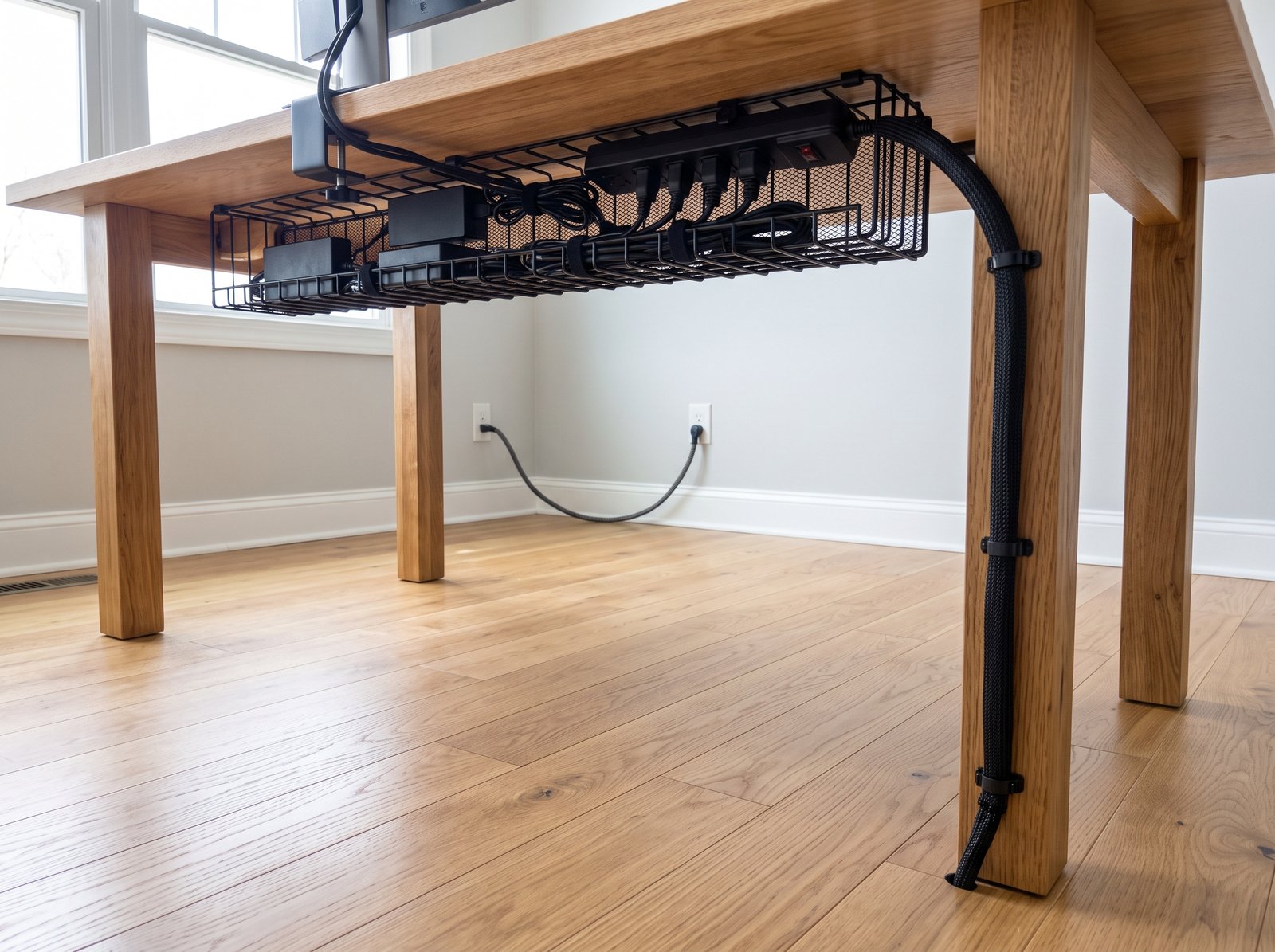
A key step in any minimalist desk setup checklist is extending simplicity beneath the tabletop. When PC towers, subwoofers, or storage drawers take up footwell space, it can be harder to change leg position comfortably during long sessions. Keeping the area organized gives you more room to adjust your seating position. For a complete deep-dive on concealing messy floor wires, explore our full benchmark guide on the best cable management solutions.
4. Route a Simple Cable Management System
Once your footwell is clear, keep the cables above and behind the desk organized as well. Route charging cables and power connections along the underside or rear edge of the desk where practical, while leaving enough slack for normal device movement. For more ideas, explore our guide to the best cable management solutions.
No-Drill Clamp-On Cable Management Tray
An under-desk tray can keep power strips, adapters, and excess cable length organized beneath the desktop. A clamp-on installation can be convenient for desks where drilling is not practical.
✓ Pros
- No drilling required for compatible clamp-on installations
- Keeps power strips and adapters off the floor
✕ Watch Out For
- Check desk thickness and rear-frame clearance before clamping
5. Choose Directional Lighting Over Ambient Bulbs
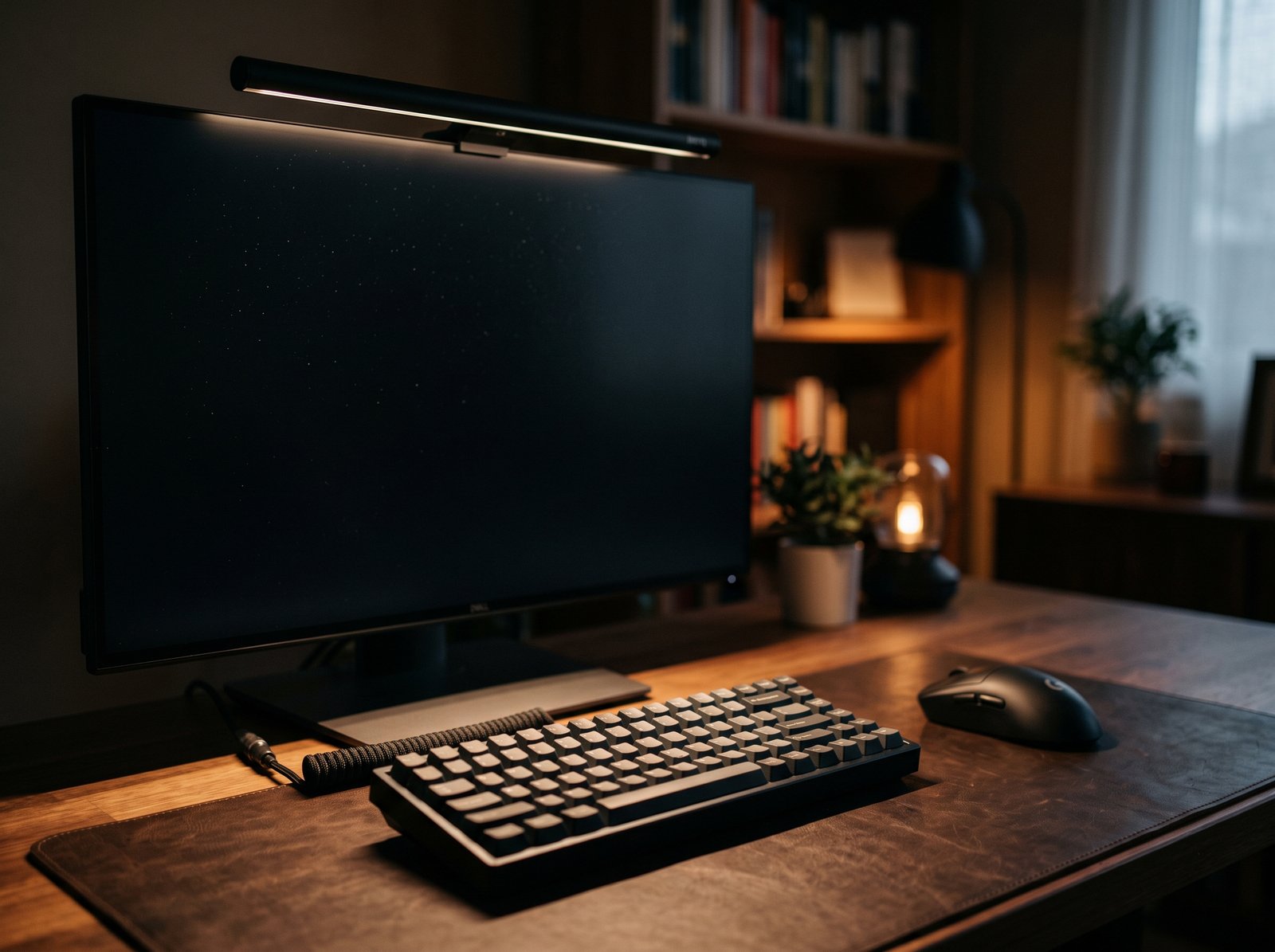
Harsh or poorly positioned lighting can create distracting reflections, while a traditional desk lamp uses valuable surface space. A monitor light bar mounts to the display and directs light toward the desk, making it a space-efficient lighting option.
Asymmetrical Monitor Light Bar
A monitor light bar is designed to illuminate the active workspace while limiting direct light on the screen. Adjustable brightness and color temperature can make it easier to tune the lighting for different times of day.
✓ Pros
- Mounts directly to the display and frees desk space
- Designed to limit direct reflections on the screen
✕ Watch Out For
- May need a dedicated adapter clip for ultra-thick curved screens
6. Define Your Active Perimeter with a Desk Mat
A desk mat can create a clear visual boundary for your active workspace. It also provides a softer surface for your hands and can help protect the desk from everyday scuffs and some keyboard noise.
Dual-Sided Minimalist Desk Mat
A water-resistant desk mat can define your active typing zone and provide a consistent surface for your keyboard and mouse. Keeping nonessential items elsewhere can help maintain a cleaner workspace.
✓ Pros
- Helps protect desk finishes from everyday scratches
- Can reduce some keyboard and desk noise
✕ Watch Out For
- Needs occasional damp-cloth wipe downs to prevent dust rings
7. Execute the 90-Second End-of-Day Reset
No workspace stays clean automatically. Spend the final 90 seconds of your workday resetting your desk to its “Zero State.” Clear away empty coffee mugs, file loose note sheets into a drawer, and park your mouse. Starting the next morning with an uncluttered surface can make it easier to begin work without first reorganizing the desk.
Want to improve your workspace further? Explore our guide to Best Ergonomic Desk Accessories for practical ideas around comfort, organization, and everyday desk use.
|
Recommended Gear Technical Comparison
Scroll right →
|
||||
|---|---|---|---|---|
| PRODUCT | PRIMARY BENEFIT | INSTALLATION | BEST FOR | LINK |
| Single Monitor Arm ★ POSTURE ANCHOR | Eye-level screen positioning | Desk Clamp / Grommet | Monitor Positioning | View Product ↗ |
| Low-Profile Mechanical Keyboard | Natural wrist angle & clearance | Wireless / Bluetooth | Typing Ergonomics | View Product ↗ |
| Under-Desk Cable Tray | Lifts bricks & power strips | No-Drill Clamp | Leg Clearance | View Product ↗ |
| Monitor Light Bar | Directional desk lighting | Screen Clip | Lighting Comfort | View Product ↗ |
| Minimalist Desk Mat | Surface protection & perimeter | Unroll & Place | Desk Surface Comfort | View Product ↗ |
Frequently Asked Questions
Why can a minimalist desk setup still feel uncomfortable?
A minimalist desk can still feel uncomfortable if the monitor, keyboard, mouse, or chair are poorly positioned. A clean-looking setup works best when the layout also gives you enough room to sit, type, point, and adjust your position comfortably.
Is a monitor light bar better than a traditional desk lamp?
It can be a space-efficient alternative to a traditional desk lamp. Models with asymmetrical optics are designed to direct light toward the desk while limiting direct light on the screen, although results vary with the monitor and placement.
Final Verdict
Following a minimalist desk setup checklist is not about maintaining an empty tabletop—it is about keeping the workspace focused and functional. Before adding a new accessory, ask whether it supports your workflow, improves organization, or makes the space more comfortable to use. Start with monitor positioning and cable organization before adding decorative extras.
Check Monitor Arm on Amazon ↗