
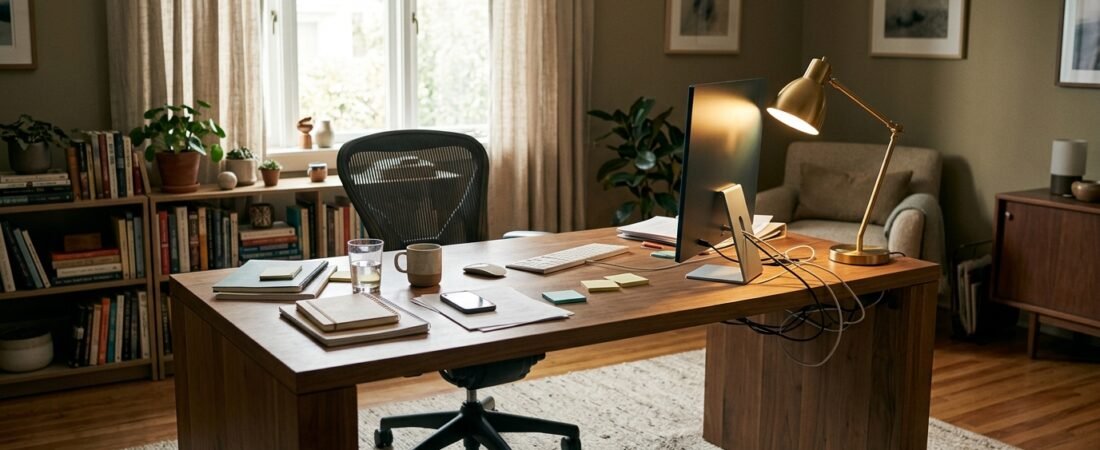
Planning essential home office upgrades has a funny way of turning into endless shopping lists. Your neck feels tired, so you search for an ergonomic chair. Your monitor feels awkward, so you start looking at monitor arms. The desk looks messy, so suddenly you are comparing cable trays, organizers, and accessories.
But a better product is not automatically the right fix. The real problem may be the position of something you already own, the way your desk is arranged, or a workflow that keeps forcing you to reach, switch, unplug, or rearrange things. OSHA’s workstation guidance makes the same broader point: there is no single correct workstation arrangement that fits everyone. The useful starting point is evaluating your own setup and adjusting it around the problems you actually have. OSHA’s computer workstation guidance →
What should you fix first?
Start with the problem that happens most often and costs you the most effort. Then make the smallest useful adjustment before buying anything.
The Five-Step Fix Before You Buy Framework
Identify the friction that keeps showing up instead of the product you feel like buying.
Ask what is actually causing the problem and which part of the setup controls it.
Reposition, raise, lower, remove, reroute or simplify before spending money.
Give the change enough real use to see whether it actually solves the recurring problem.
Buy only when the remaining problem is understood and a product directly solves it.
The 10-Minute Home Office Upgrade Audit
Before opening another shopping tab, spend ten minutes looking at the workspace you already have. The goal is not to judge whether the desk looks good. It is to find the repeated friction that makes work harder than it needs to be.

Start by auditing the setup you already have before shopping for a replacement.
Ask yourself:
- What annoys me almost every day?
- What task keeps making me reach, twist, unplug or get up?
- What feels uncomfortable after a longer work session?
- What is repeatedly out of reach?
- What gets in the way of the monitor, keyboard, mouse or documents?
- What can I change for free?
- After that change, what problem still remains?
This mirrors the logic behind OSHA’s workstation evaluation checklist: identify where the arrangement is not working, then review the relevant component instead of treating the whole desk as a single problem.
Want a broader checklist for the essentials, optional upgrades and basic workspace components? See our home office setup checklist.
Your Body Is Fighting the Desk
Discomfort does not automatically mean you need a new chair. Start by checking the relationship between the chair, desk, monitor and the way you use them together.
Your feet should have stable support. Your back should have usable support rather than forcing you to sit at the edge of the seat. Your shoulders should not stay lifted just to reach the work surface, and your elbows should not need to remain far away from your torso while you type or use the mouse.
OSHA emphasizes adjustability because one workstation arrangement does not fit everyone. Chair height, seat depth, lumbar support, desk height and arm position all need to work together. If the chair is already adjustable, use those controls before assuming the chair itself is the problem. If your desk height cannot be changed, a footrest or another small adjustment may solve part of the mismatch.
The useful question is not “Do I need a better chair?” It is “What adjustment am I missing?” If your current furniture cannot provide a workable fit even after adjustment, then an upgrade starts to make more sense.
Once you know the problem is genuinely ergonomic, our guide to best ergonomic desk accessories can help you evaluate the smaller tools that may address a specific constraint.
Your Screen Is in the Wrong Place
Monitor problems are often positioning problems disguised as equipment problems. A monitor can be large, sharp and expensive and still feel wrong if you are constantly looking too high, too low, too far to the side or too close.
Start with the simplest change: move the monitor. Put your main display in front of you, then adjust its height and distance so you can work without repeatedly leaning forward or tipping your head backward. OSHA and CCOHS both emphasize monitor height, viewing distance and placement relative to the user rather than treating one exact dimension as universally perfect.
This is where a monitor riser can be useful. So can a stack of stable material during a temporary test. The point is not to buy something immediately. The point is to find out whether height is actually the problem.
A monitor arm becomes more compelling when the built-in stand cannot provide the range of adjustment you need, your desk space is tight, or you regularly change the screen position. The arm should solve a known constraint—not simply make the desk look more “professional.”
Your Hands Are Reaching for the Desk
Keyboard and mouse problems are easy to misdiagnose because the product itself is usually blamed first. But the position of the input devices often matters more than the model.
Try moving the keyboard and mouse closer together and closer to your normal working position. Clear away anything that forces the mouse into a far corner of the desk. If the keyboard is unusually wide, temporarily move the mouse to a more direct position and see whether that changes how much your shoulder reaches outward.
CCOHS notes that there is not one universally “right” mouse location. The better goal is to avoid excessive forward or sideways reaching and create a setup where the mouse can be used comfortably without repeatedly leaning out of position.
Only after testing the layout should you consider a different keyboard, mouse, tray or other input accessory. Otherwise, you risk replacing a perfectly usable device while keeping the same underlying reach problem.
Your Desk Is Too Small, Too Deep or Simply Wrong
Desk dimensions can create several downstream problems at once. A shallow desk can leave the monitor too close. A crowded desk can push the mouse too far away. A deep desk can encourage a monitor to drift backward while everyday items remain scattered around the front edge.
Before replacing the desk, remove the things that do not need to live there. Move chargers, notebooks, speakers or decorative objects elsewhere for a few days. Rearrange the monitor and input devices. Measure what you actually need to keep within reach.
OSHA notes that limited work-surface space can force components into less practical positions and contribute to awkward reaching or viewing angles.
If the problem disappears after removing or rearranging equipment, the desk was not necessarily too small. The layout was. If the physical dimensions still block the working arrangement you need, a different desk may be justified.
Your Lighting Is Creating the Problem
Lighting is one of the easiest things to “fix” by buying something, but it is often the easiest problem to test for free. Change the monitor angle. Rotate the desk. Close the blinds partway. Move the lamp. Turn off one overhead source and see what changes.
OSHA recommends arranging the workstation to minimize glare from windows, overhead lights and desk lamps. Its guidance also recommends positioning screens and light sources so direct reflections are reduced.
That means a monitor light bar can be useful in the right setup, but it should not be the first reflex. A light bar makes more sense when you want focused desk illumination while preserving surface space and your room lighting cannot easily deliver that. If your real problem is a window reflecting directly into the screen, another lamp will not fix the root cause.
Once you have confirmed that lighting is the bottleneck, see our guide to best monitor light bars for a more focused look at monitor-mounted lighting options.
Your Cables Are a Symptom, Not the Problem
Cable clutter is often the final visible symptom of a setup that is still changing. You buy clips, sleeves and trays, then move the monitor three days later and have to route everything again.
Stabilize the physical layout first. Decide where the monitor, computer, power strip and frequently used peripherals actually belong. Then route cables along those paths.
This approach also keeps cable management from becoming another project that generates more work. The goal is not to make every wire invisible. It is to keep the important connections predictable, supported and out of the way.
Once your device layout is stable, see our guide to best cable management solutions for specific ways to finish the routing.
Your Calls Sound or Look Bad
A poor-looking video call does not automatically mean you need a premium webcam. A bad camera angle, bright window behind you, microphone that is too far away, or hard room surfaces can all make a call worse before the hardware itself becomes the bottleneck.
Start with the camera position. Put the camera where your face is naturally framed rather than looking dramatically up or down. Then test the light direction. If a window is directly behind you, rotate the setup and see whether the image improves.
For audio, move the microphone closer before buying another one. Reduce obvious reflective surfaces around you where practical and test the room at the same speaking distance you use during real calls.
If the same limitation remains after positioning and room changes, then a webcam, microphone or light can become a targeted upgrade. The purchase should solve the remaining bottleneck.
The Setup Looks Good but Work Still Feels Annoying
A desk can look clean and still be inefficient. The problem may have nothing to do with ergonomics or aesthetics. It may be the five small interruptions that happen over and over again.
Maybe your laptop must be unplugged every time you want to use the monitor. Maybe your charger is on the wrong side of the desk. Maybe the document you reference every hour is behind your keyboard. Maybe you keep moving the microphone, light or notebook because nothing has a permanent home.
NIOSH’s current office-environment guidance recognizes that the solution to a workplace problem is sometimes equipment or furniture and sometimes a change to the tasks themselves. That is an important distinction for home offices too.
Before buying anything, write down the three interruptions you repeat most often. Then remove, relocate or simplify one of them. A small reduction in repeated friction can be more useful than a much more expensive upgrade that solves a problem you rarely notice.

Test the smallest useful change before turning a workspace problem into a shopping list.
Fix, Test, Then Buy
Reposition, remove, raise, lower, reroute or simplify something you already own.
Use the new arrangement through a normal work session instead of judging it after five minutes.
Identify what the free adjustment could not solve. Be specific about the remaining constraint.
Make sure the product fits your desk, monitor, chair, devices and actual working pattern.
Choose the simplest purchase that directly addresses the problem you have already identified.
This is the point where buying becomes easier, not harder. Once you know what the problem actually is, you can judge a product against a clear requirement instead of comparing twenty products based on vague promises.
What You Probably Should Not Buy First
None of these products are automatically bad. The problem is buying them before you know what they are supposed to solve.
Do not organize objects you may soon move. Stabilize the workspace before building storage around it.
If the actual issue is glare, poor task lighting or screen reflections, decorative lighting is solving the wrong problem.
More screen space can help some workflows, but it can also create more positioning and cable complexity.
Do not permanently route a setup that you are still rearranging.
Fix camera height and lighting first. The hardware may not be the limiting factor.
A standing option can be useful, but it should respond to your working needs rather than a trend.
The same logic applies to oversized monitors, expensive desk mats, elaborate charging stations and other “setup” products. A product can be excellent and still be the wrong purchase for your current bottleneck.
Smart Home Office Upgrades: A Better Priority Order
There is no universal first upgrade. The better order is conditional: identify the problem, test the simplest fix, then move to the category that actually solves the remaining constraint.
| Your problem | First thing to try | Upgrade only when |
|---|---|---|
| Feet or seat mismatch | Adjust chair height, desk fit or foot support. | Existing furniture still cannot provide a workable fit. |
| Screen too low | Reposition the display or test a stable riser. | The current stand cannot reach the position you need. |
| Mouse too far away | Clear surface space and move the mouse closer. | The physical layout cannot provide comfortable reach. |
| Desk too shallow | Remove or relocate equipment and test a simpler layout. | The desk dimensions still block a workable arrangement. |
| Monitor glare | Reposition the monitor, window or light source. | The room still produces distracting reflections after repositioning. |
| Cable mess | Stabilize the device layout and identify fixed cable paths. | Cables remain disruptive after the routing plan is stable. |
| Bad video calls | Fix camera height, lighting and microphone distance. | Hardware remains the clear bottleneck after positioning changes. |
| Workflow friction | Map the repeated task and remove an unnecessary step. | A physical or technical constraint still remains. |
Frequently Asked Questions
What should I upgrade first in my home office?
Start with the component causing the biggest recurring problem, not automatically the most expensive one. If your biggest issue is screen position, solve that first. If the problem is reach, change the layout. If the furniture cannot be adjusted enough to create a workable fit, then a targeted upgrade makes more sense. OSHA’s workstation guidance supports evaluating and adjusting the existing setup rather than assuming one arrangement works for everyone.
Is a monitor arm worth it?
It can be. A monitor arm is most useful when your current stand limits height or viewing-position adjustments, desk space is tight, or you regularly need to reposition the display. If you can achieve a comfortable position by moving the monitor or using a simple riser, the arm may not solve anything you actually need.
Should I buy an ergonomic chair first?
Not automatically. First check chair height, desk height, foot support, back support and the relationship between the chair and your monitor and keyboard. A well-designed adjustable chair can be useful, but OSHA emphasizes that the chair should be adjusted along with the rest of the workstation.
Do I need a standing desk?
Not necessarily. A height-adjustable workstation can make it easier to vary positions during the day, but the purchase should still solve a real need. OSHA’s evaluation guidance encourages opportunities to change posture and avoid prolonged sitting or standing rather than treating a standing desk as a universal requirement.
Should cable management be one of the first upgrades?
Usually after the device layout is stable. Once the monitor, computer, power strip and frequently used peripherals are in their actual positions, cable routing becomes much easier. Doing it earlier can mean organizing a setup you immediately change again.
Selected Sources
- OSHA — Computer Workstations: individualized workstation evaluation, adjustment and the principle that there is no single correct arrangement for everyone. Official source →
- OSHA — Evaluation Checklist: practical checks for monitor placement, chair fit, keyboard and mouse reach, posture, task variation and lighting. Official source →
- OSHA — Monitors: monitor height, viewing distance, alignment and glare considerations. Official source →
- OSHA — Chairs: chair fit, adjustability, back support and foot support considerations. Official source →
- OSHA — Workstation Environment: lighting, glare and workstation-environment guidance. Official source →
- CDC / NIOSH — Office Environments and Your Safety: current guidance on office equipment, task design, posture, work environment and opportunities for movement. Official source →
- CCOHS — Positioning the Monitor: monitor viewing angle, distance and placement considerations. Official source →
- CCOHS — Computer Mouse Problems and Placement: mouse reach, positioning and repetitive-use considerations. Official source →
- Mayo Clinic — Office Ergonomics: practical guidance on monitor placement, laptops, frequently used objects and workstation adjustments. Official source →

Before You Buy Another Desk Upgrade
The goal is not to build the most impressive desk. It is to remove the things that make your work harder than it needs to be.
Before jumping into expensive home office upgrades, fix what you can for free. Test the change, identify what remains, and then buy the smallest upgrade that solves the actual problem.
Sometimes the right answer is a monitor arm, an ergonomic accessory, better lighting or a cleaner cable system. Sometimes the right answer is simply moving something you already own.
And sometimes the best home office upgrade is buying nothing.
Editorial note: This guide focuses on general workstation setup and practical decision-making. Ergonomic fit varies by person, task and workspace. The guidance here is not medical diagnosis or treatment, and a product should not be treated as a guaranteed solution for pain or injury.