
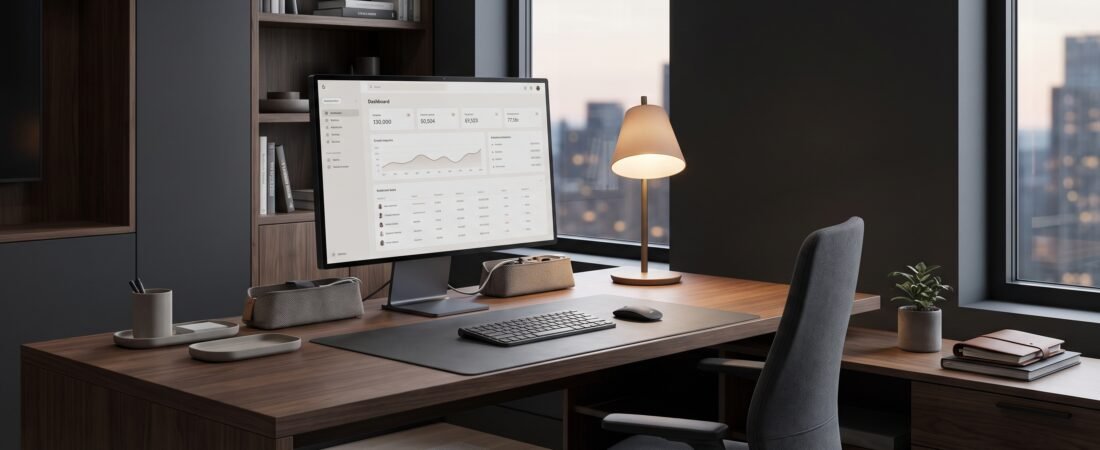
A home office setup checklist can save you from spending money on equipment you do not actually need. Whether you are building a workspace from scratch or improving an existing desk, the goal is simple: create a comfortable, functional setup that fits the way you actually work.
This guide focuses on the essentials first, followed by useful upgrades that can improve organization, connectivity, lighting, and everyday convenience. You do not need to buy everything at once. A good home office setup should be built around your desk, computer, working habits, and available space.
What should a home office setup include?
The core of a good home office setup checklist is a suitable desk, comfortable chair, properly positioned display, keyboard and mouse, useful lighting, reliable power and connectivity, and basic cable management.
- Essential: Desk, chair, computer or laptop, monitor setup, keyboard, mouse and reliable power.
- Strongly recommended: Good lighting, cable management and practical desk organization.
- Optional: Monitor arm, laptop stand, webcam, microphone, desk mat and other productivity upgrades.
Home Office Setup Checklist
- 1. Desk & Workspace
- 2. Monitor & Positioning
- 3. Chair & Ergonomics
- 4. Keyboard, Mouse & Desk Setup
- 5. Lighting
- 6. Power & Connectivity
- 7. Cable Management
- 8. Desk Organization
- 9. Optional Upgrades
- 10. Essential vs. Optional
- 11. Build Your Home Office Setup in the Right Order
- 12. What You Actually Need
- 13. Frequently Asked Questions
- 14. Final Verdict
1. Desk & Workspace: Start With the Foundation
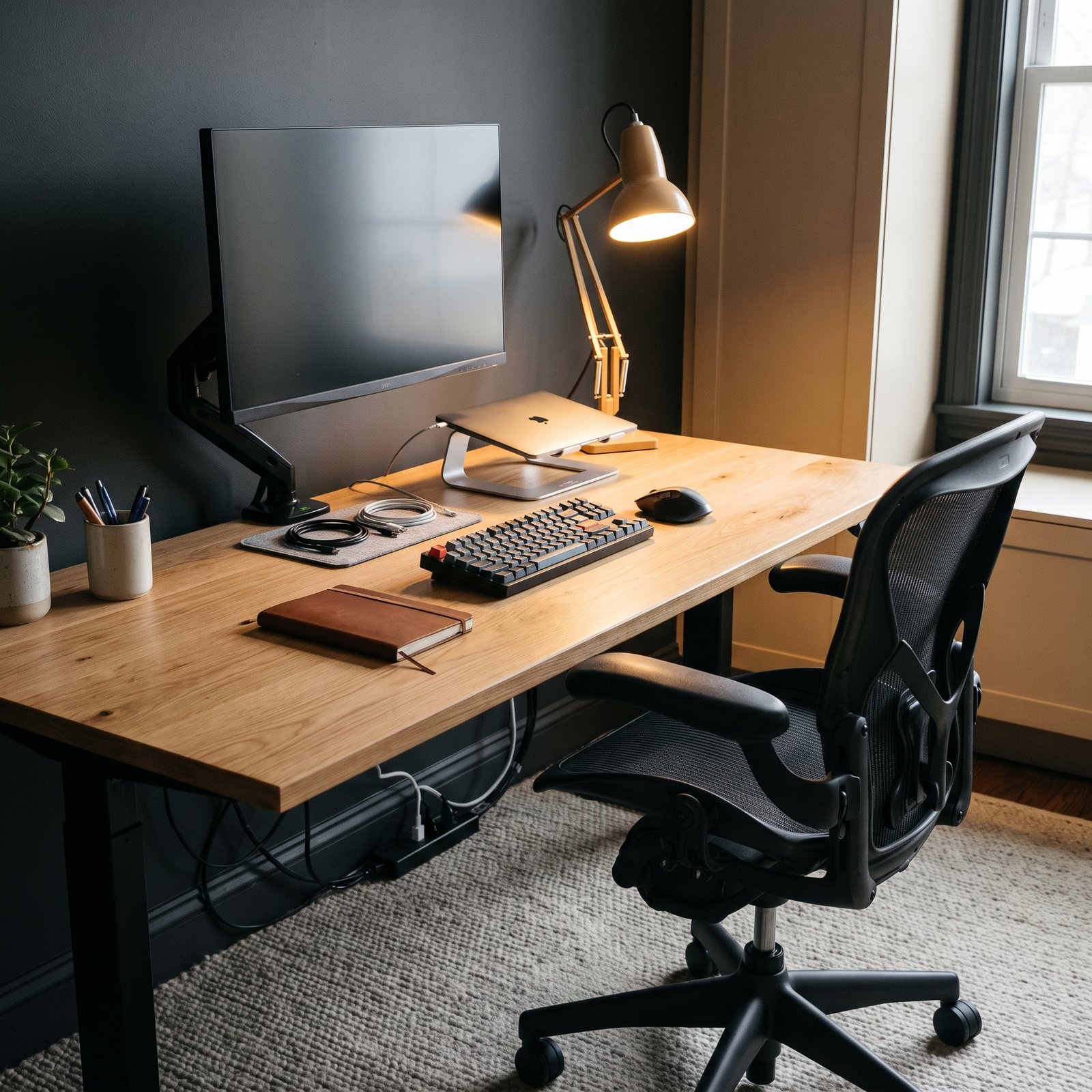
Your desk determines how much room you have for your monitor, keyboard, mouse, laptop, documents and everyday accessories. Before buying accessories, make sure the workspace itself is large enough for the equipment you use most.
If you already have a suitable desk, there is no reason to replace it simply because a newer model looks better. One useful upgrade is a sit-stand desk converter if you want occasional standing without replacing the entire desk.
FLEXISPOT 36″ Electric Standing Desk Converter
A motorized desktop converter can be useful when you want to alternate between sitting and standing while keeping your existing desk.
Check Price on Amazon →2. Monitor & Positioning: Get the Screen Right
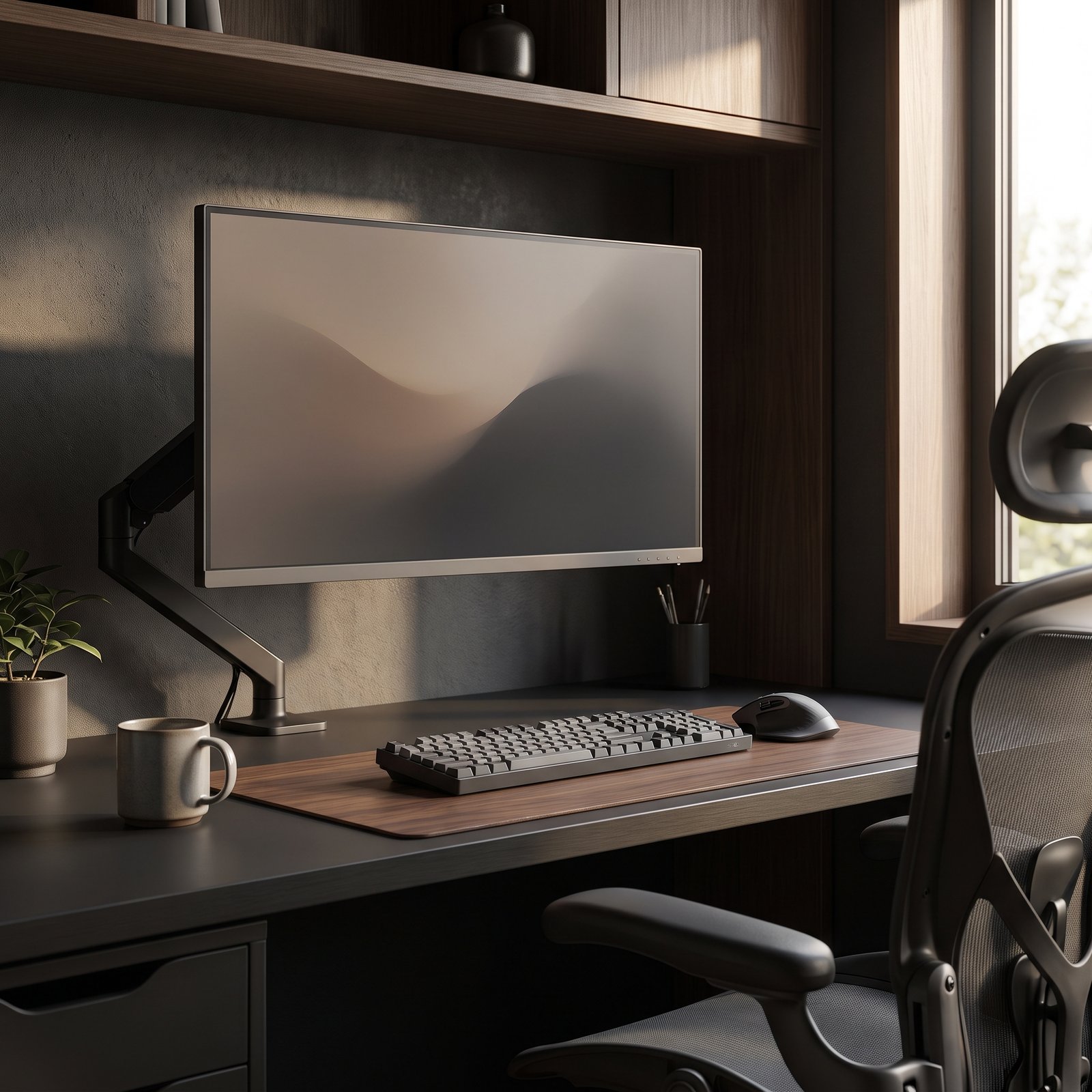
A good display is only part of the equation. Position matters too. Your main screen should sit at a comfortable viewing height and distance so you are not constantly leaning forward or looking sharply downward.
A monitor arm can free up valuable desk space and make it easier to adjust screen height and viewing position. If you use a laptop as your primary computer, an external display can also make a larger workspace more practical.
Dell P2725QE 27″ 4K USB-C Monitor
Designed for a clean desktop setup with a high-resolution 27-inch display and USB-C connectivity.
View Monitor →Ergotron LX Desk Monitor Arm
A monitor arm can make screen positioning more flexible while keeping the desk surface cleaner.
View Monitor Arm →3. Chair & Ergonomics: Prioritize Everyday Comfort
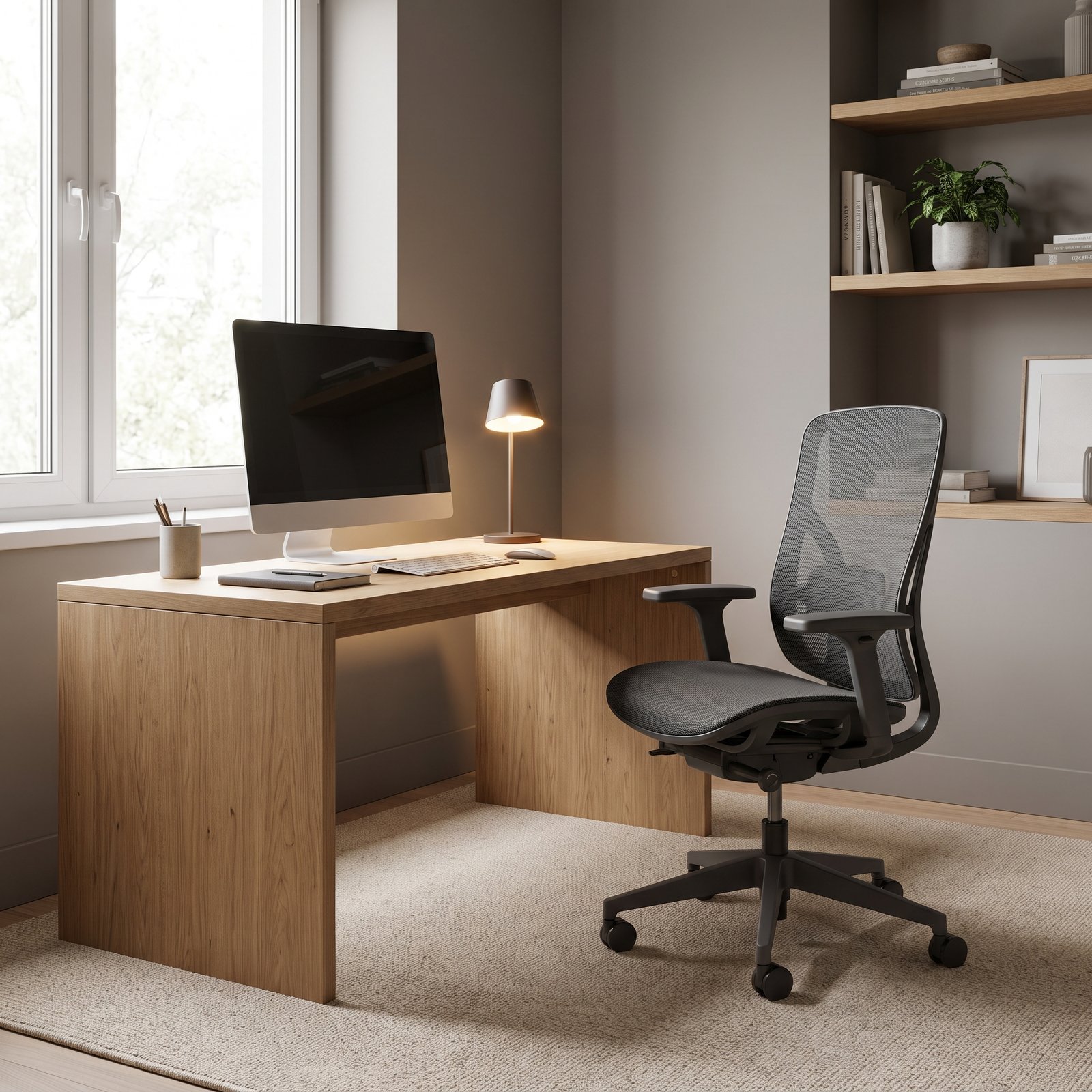
If you spend several hours at your desk, the chair deserves more attention than many decorative accessories. Look for adjustability, a seat that supports your normal working position, and a setup that allows your feet and arms to rest comfortably.
A good chair does not automatically make a workspace ergonomic. Desk height, monitor position, keyboard placement and your working habits matter too.
Branch Ergonomic Chair Pro
An adjustable ergonomic chair can be a worthwhile investment when your workspace is used for long working sessions.
Check Chair on Amazon →4. Keyboard, Mouse & Desk Setup
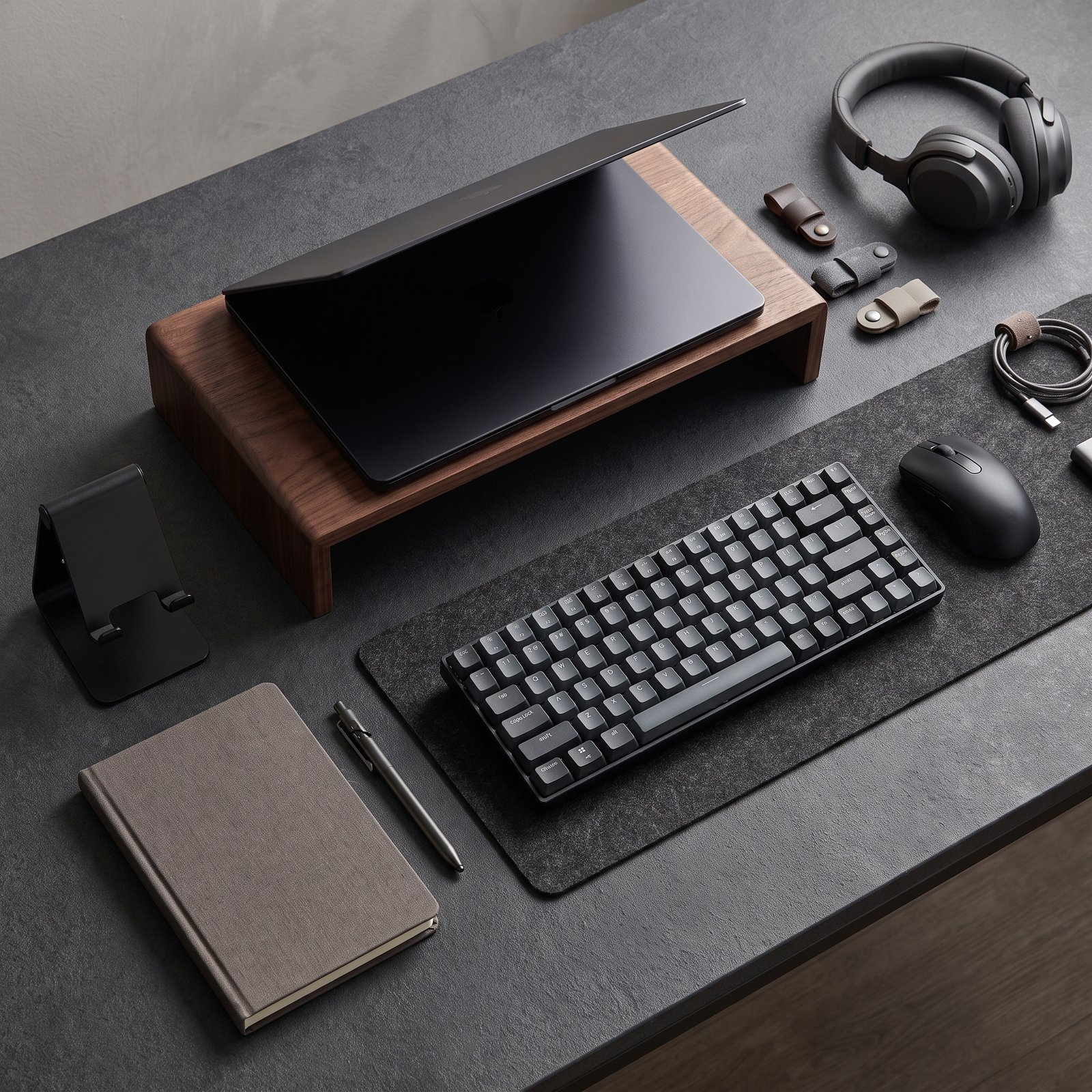
Your keyboard and mouse are among the few items you interact with constantly, so they should be comfortable and easy to position. Wireless peripherals can also reduce visible cable clutter.
Logitech MX Keys S
A low-profile wireless keyboard designed for a clean, multi-device desktop workflow.
View Keyboard →Logitech MX Master 3S
A productivity-focused wireless mouse with a design suited to extended desktop use.
View Mouse →A desk mat is optional, but it can create a defined workspace for your keyboard and mouse while adding a little protection to the desk surface.
Logitech Desk Mat – Studio Series
A large desk mat can give a keyboard-and-mouse setup a more organized visual footprint.
View Desk Mat →5. Lighting: Improve the Workspace Before Adding More Gear
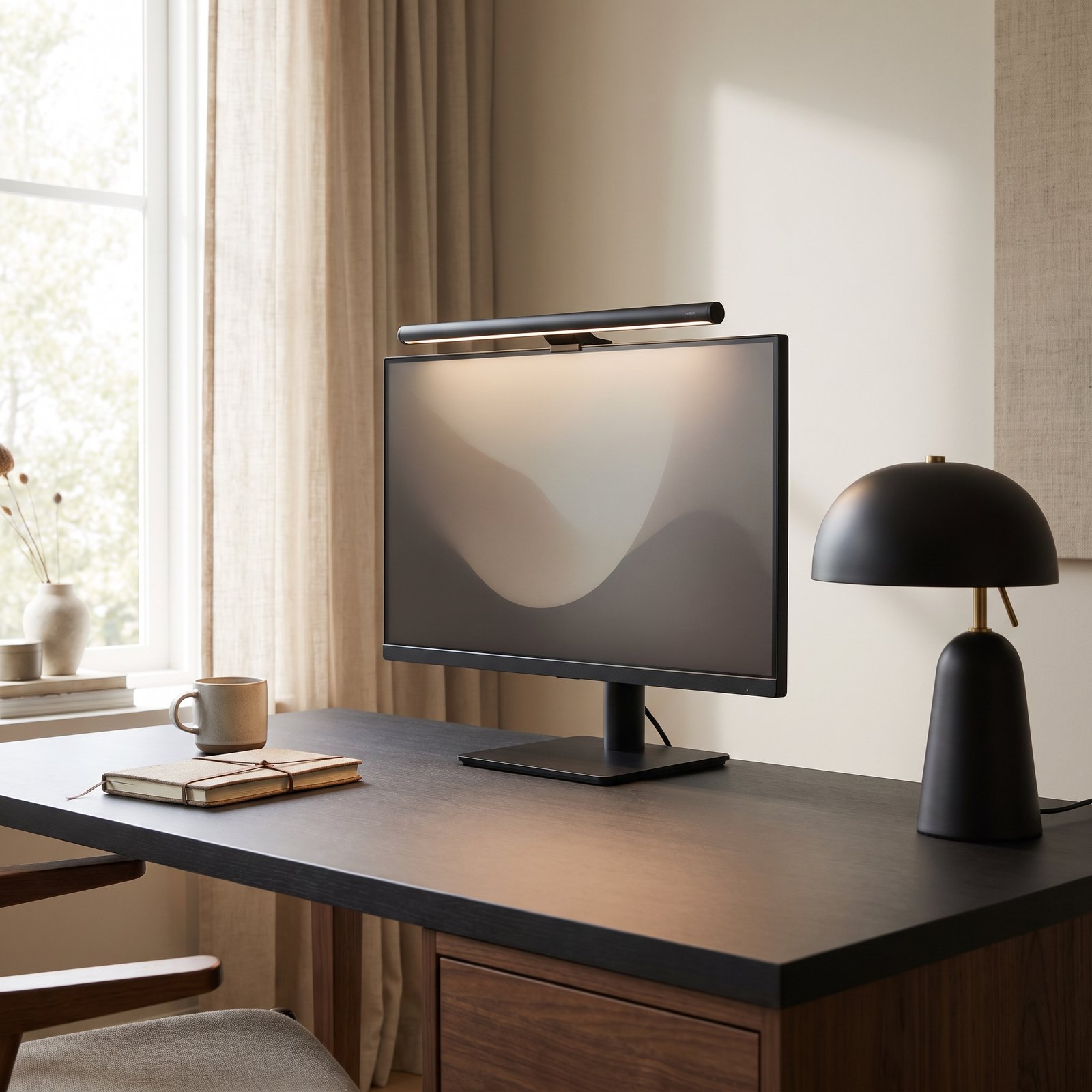
Lighting is easy to overlook when building a home office. A workspace can have excellent hardware and still feel unpleasant if the desk is poorly lit or the screen has distracting reflections.
Start with the room’s existing light. Then add task lighting where you actually need it. A monitor light bar can be useful when you want light over the desk without taking up additional surface area.
BenQ ScreenBar Halo
A monitor-mounted light can provide focused desk illumination while keeping the physical footprint small.
View ScreenBar →6. Power & Connectivity: Keep the Setup Reliable
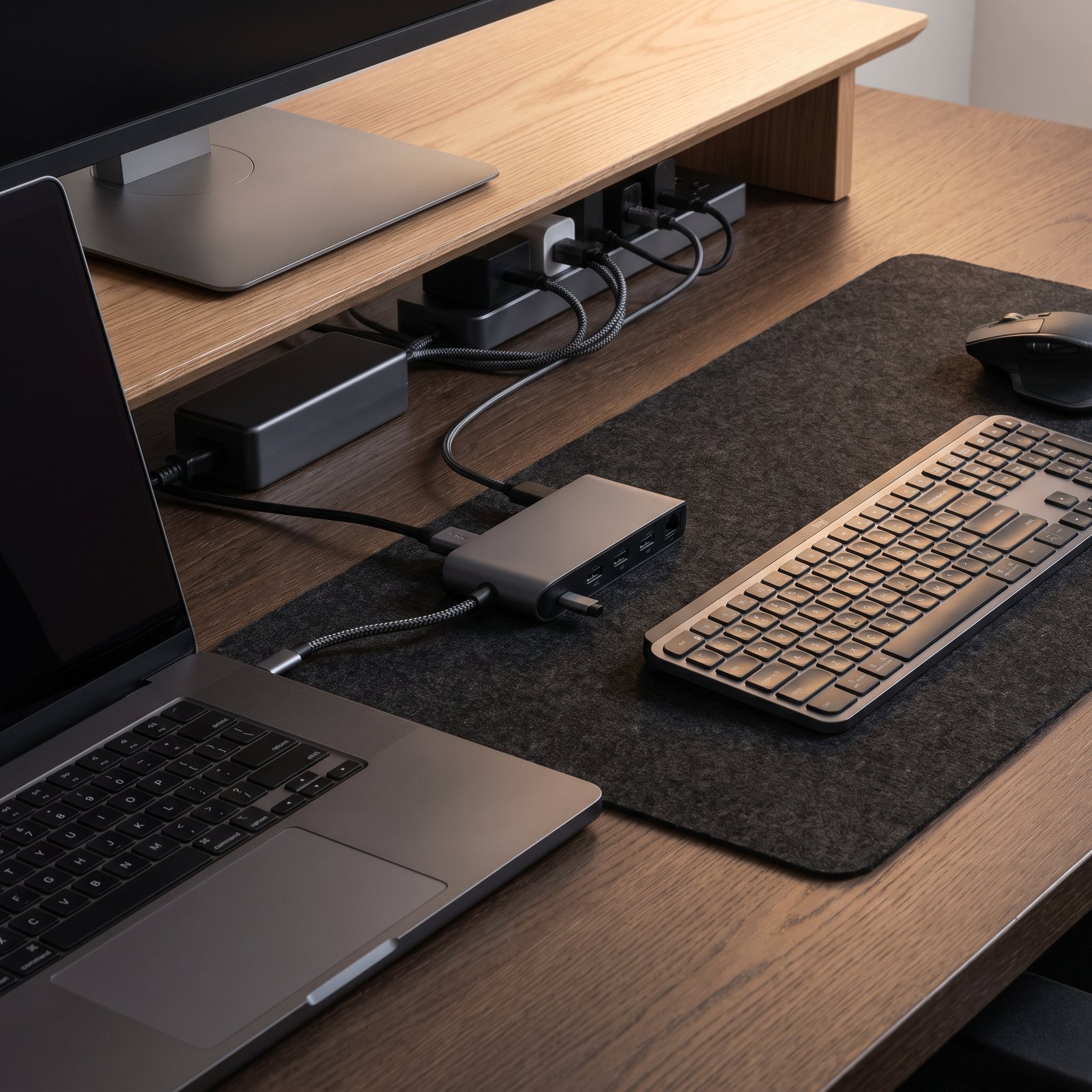
A modern desk often has more devices than available ports: laptop, monitor, phone, keyboard, mouse, storage and other accessories. The right connectivity setup can reduce unnecessary adapters and make your daily workflow simpler.
Anker USB-C Hub 332 5-in-1
A compact USB-C hub can be useful when a laptop has limited ports and you need additional peripheral connectivity.
View USB-C Hub →Belkin 12-Outlet Surge Protector
A surge protector can provide additional outlets for a desk with several powered devices. Check your electrical requirements and local compatibility before purchasing.
View Surge Protector →7. Cable Management: One of the Highest-Impact Upgrades
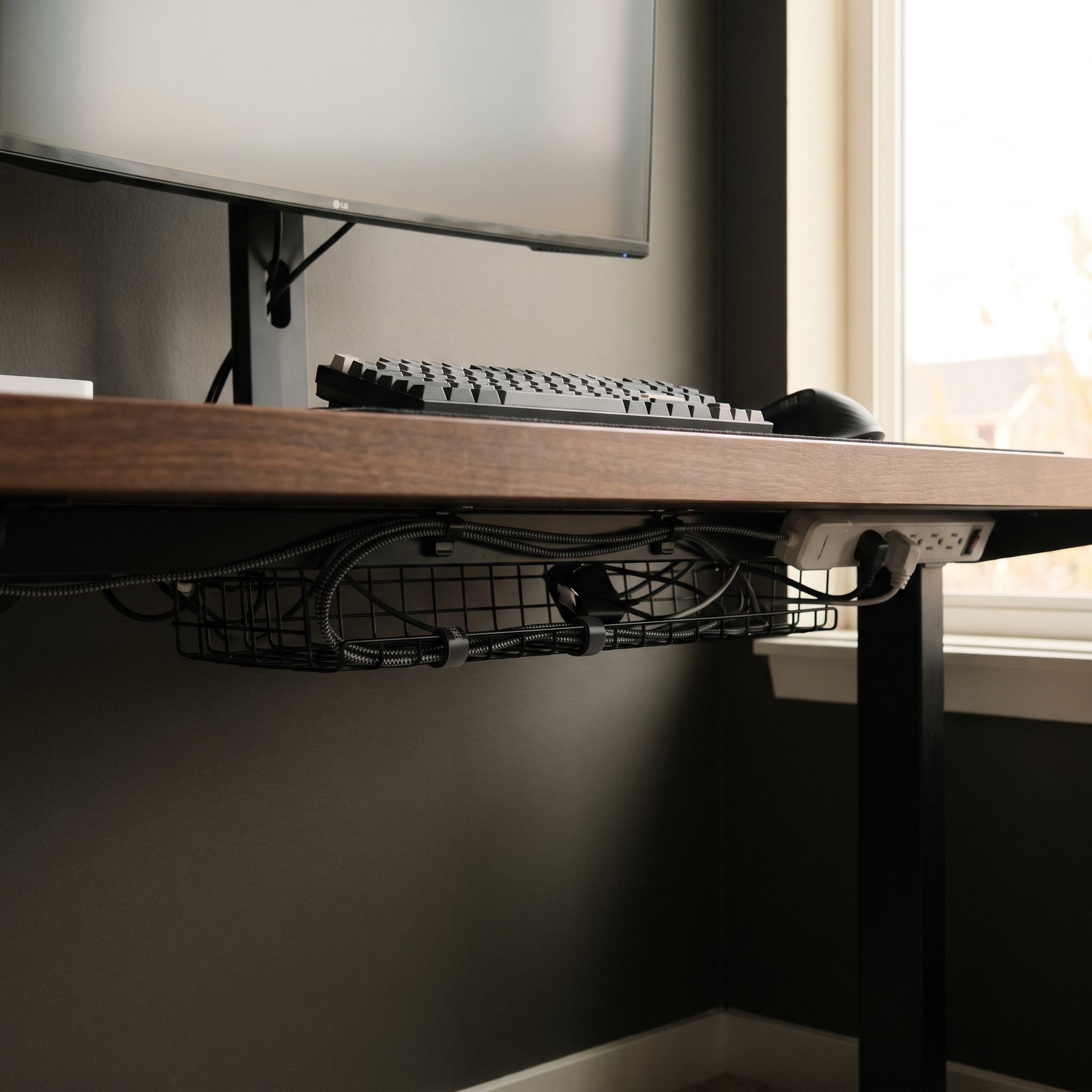
Cable management does not need to be complicated. The biggest improvement usually comes from getting power strips and excess cable length off the floor and grouping cables by destination.
An under-desk tray is useful for larger power adapters and power strips, while reusable cable ties can keep individual cable runs organized without permanently committing to one arrangement.
VIVO Under Desk Cable Management Tray
A practical way to keep power strips and excess cables underneath the desk instead of on the floor.
View Cable Tray →VELCRO Brand ONE-WRAP Cable Ties
Reusable cable ties are useful for bundling and re-routing cables as your setup changes.
View Cable Ties →8. Desk Organization: Keep Frequently Used Items Within Reach
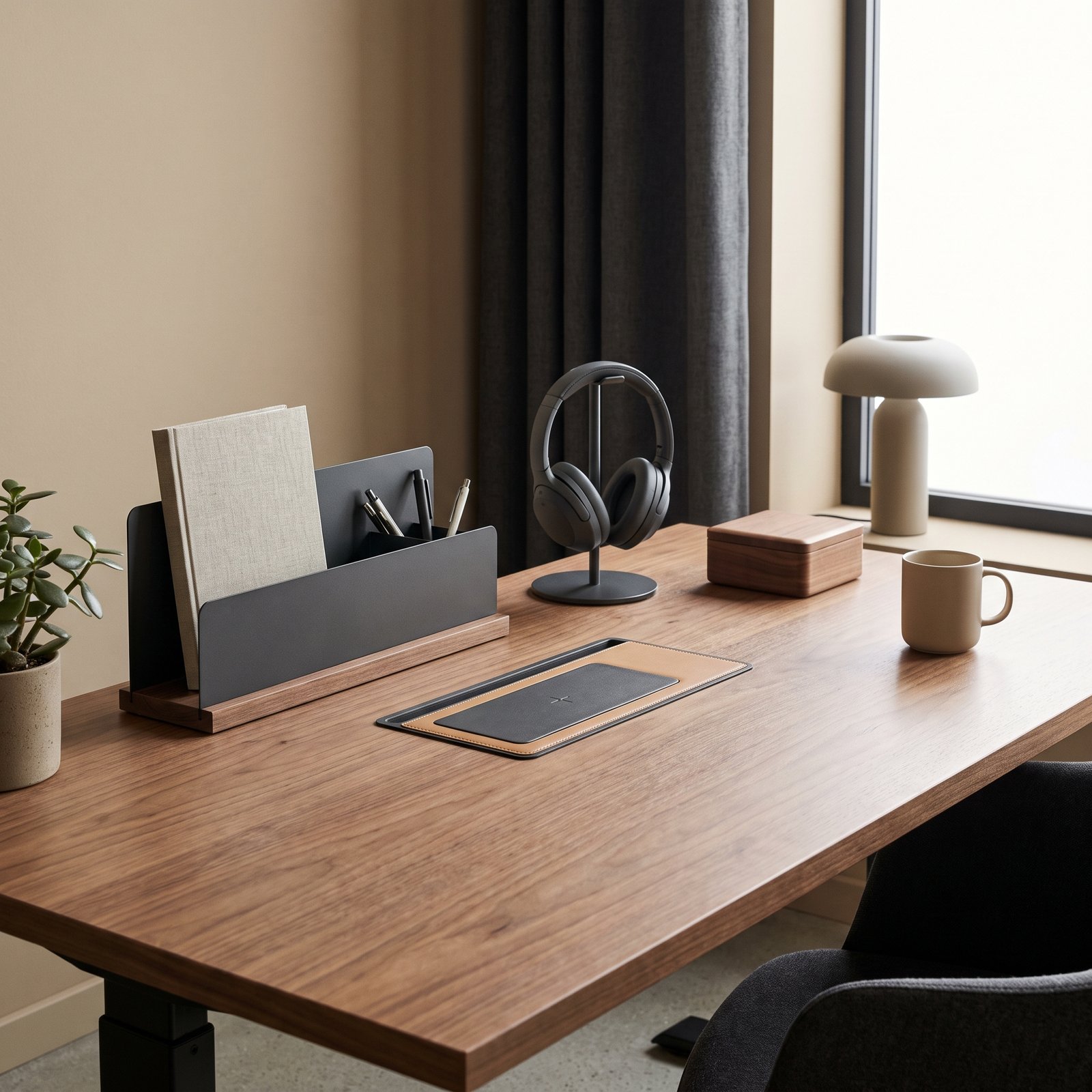
Desk organization should make your workflow easier, not create another collection of things to maintain. Keep only the items you use regularly within easy reach.
Small organizers can help with pens, notebooks, headphones and other accessories. The goal is not to make the desk completely empty; it is to give frequently used items a predictable place.
9. Optional Home Office Upgrades
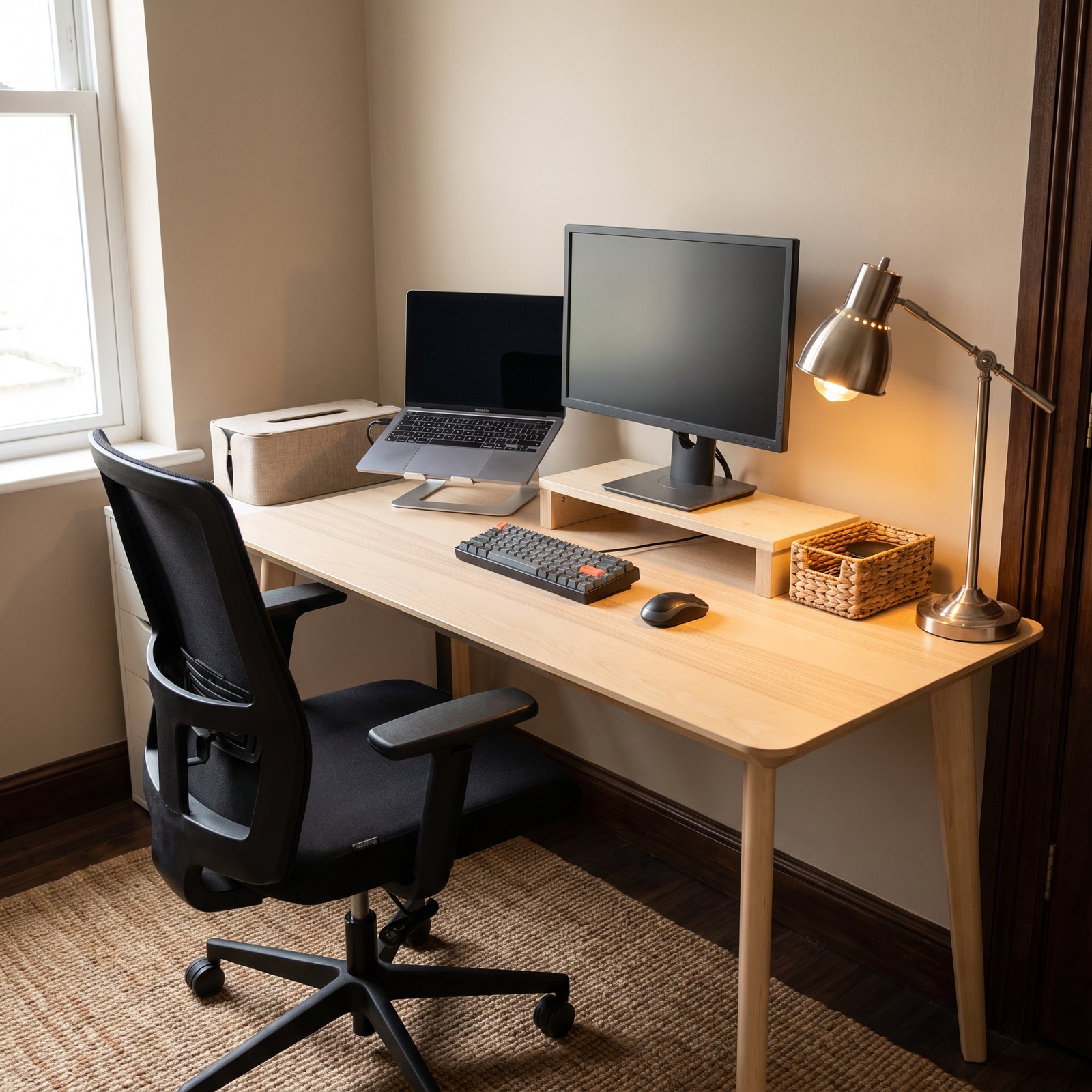
Once the basics are working well, optional upgrades can improve specific parts of your workflow. These should come after the essentials rather than before them.
UGREEN Foldable Laptop Stand
Useful when you want to raise a laptop and pair it with an external keyboard or monitor.
View Laptop Stand →Logitech Brio 4K Webcam
An optional upgrade for video calls, streaming or other camera-based work.
View Webcam →Elgato Wave:3 MK.2
A dedicated USB microphone can make sense if your work involves frequent voice calls, recording or streaming.
View Microphone →10. Home Office Setup Checklist: Essential vs. Optional
You do not need to purchase every item in this guide. Use this quick comparison to decide what deserves priority in your own workspace.
| Item | Priority | Why It Matters |
|---|---|---|
| Desk | Essential | Provides the physical foundation for the workspace. |
| Chair | Essential | Supports comfortable everyday desk work. |
| Monitor / Display | Essential | Important for screen-based work and productivity. |
| Keyboard & Mouse | Essential | Primary interaction tools for most desktop workflows. |
| Lighting | Strongly Recommended | Improves the practical usability of the workspace. |
| Cable Management | Strongly Recommended | Reduces clutter and makes the setup easier to maintain. |
| USB-C Hub | As Needed | Useful when your computer has limited connectivity. |
| Monitor Arm | Optional | Useful for positioning flexibility and extra desk space. |
| Webcam / Microphone | Optional | Worth considering for calls, recording and streaming. |
| Desk Accessories | Optional | Useful only when they solve a specific organization problem. |
11. Build Your Home Office Setup in the Right Order
One of the easiest ways to overspend is buying accessories before deciding what your workspace actually needs. A better approach is to build the setup in stages.
Decide where the desk will go and how much room you have.
Establish a comfortable working height before adding accessories.
Adjust the screen before deciding where the keyboard and mouse should sit.
Position your main input devices where they are comfortable to use.
Deal with practical problems before adding decorative accessories.
Only purchase accessories that solve a problem you have actually identified.
12. What You Actually Need for a Home Office Setup
The best home office setup checklist is not necessarily the longest one. If you are starting from scratch, prioritize the equipment that directly affects your ability to work.
You Probably Need
- A suitable desk or workspace
- A comfortable chair
- A computer or laptop
- A suitable display setup
- Keyboard and mouse
- Reliable power and charging
- Basic cable management
You May Not Need
- Multiple monitor arms
- Large collections of desk accessories
- Specialized lighting everywhere
- Premium microphones for basic calls
- A webcam if your laptop camera is sufficient
- Accessories that do not solve a specific problem
13. Home Office Setup Checklist FAQ
What is the most important part of a home office setup?
Start with the workspace itself: a suitable desk, comfortable chair, appropriate computer or laptop, and a display arrangement that works for your daily tasks. Accessories should come after those basics.
Do I need an expensive desk for a home office?
No. A desk does not need to be expensive if it provides enough usable space, feels stable and works with your equipment. Upgrade only when your current desk creates a real limitation.
Is a monitor arm necessary?
A monitor arm is optional. It becomes more useful when you want greater positioning flexibility, additional desk space or a cleaner setup.
What should I buy first when building a home office?
Start with the desk or workspace, chair, computer, monitor setup and basic input devices. After those are working properly, address lighting, power, cables and organization.
How can I avoid overspending on home office equipment?
Build the workspace in stages. Identify a real problem before buying an accessory, and avoid purchasing products simply because they look good in a setup photo.
Should I buy everything at once?
Usually not. Buying in stages lets you understand what your workspace actually needs and prevents optional accessories from becoming unnecessary expenses.
14. Final Verdict: Build a Better Workspace, Not a Bigger One
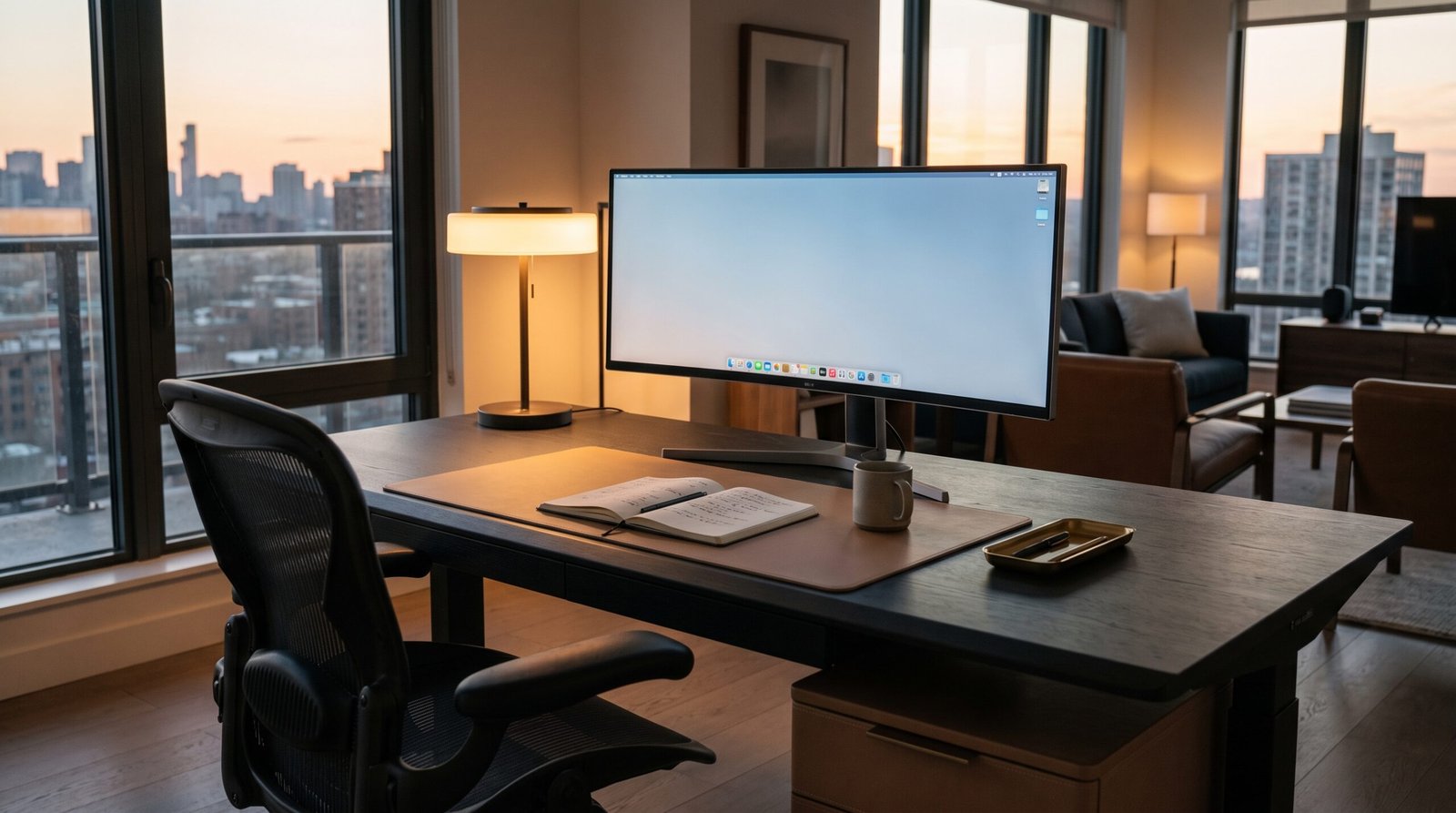
The best home office is not the one with the most expensive equipment. It is the one that makes your everyday work easier without filling the desk with things you rarely use.
Start with the fundamentals: a suitable workspace, comfortable chair, reliable computer and display setup, keyboard and mouse, and dependable power. Then improve lighting, cable management and organization based on the problems you actually encounter.
From there, optional upgrades such as a monitor arm, laptop stand, webcam or dedicated microphone can make sense when they support your workflow.
Use this home office setup checklist as a framework rather than a shopping list. The goal is a workspace that works for you—not simply a desk filled with more gear.
More From The Few Picks
If you are building a complete workspace, you may also find these guides useful:
Product availability, pricing and specifications can change over time. Check the retailer’s current product page for the latest information before purchasing. The Few Picks may earn a commission from qualifying purchases made through affiliate links.