

Understanding how to protect your eyes while using a computer has become an essential workplace skill. If you spend continuous hours coding, writing, studying, or gaming, symptoms like tired eyes, dry corneas, temple headaches, and blurred vision are frequent warning signs of digital eye strain.
The human visual system was never designed to lock focus onto an illuminated flat plane just two feet away for eight hours straight. Fortunately, mitigating digital strain does not require expensive gear; it requires understanding how to protect your eyes while using a computer through physical distance calibration, conscious blinking routines, and optical glare management.
Top 3 Rules for Immediate Relief
- The 20-20-20 Habit: Look at an object 20 feet away for 20 seconds every 20 minutes to reset ciliary eye muscles.
- The Arm’s Length Rule: Position your display 50–70 cm (20–28 inches) away, with the top bezel resting at or slightly below eye level.
- Balanced Luminance: Match screen brightness to ambient room lighting and eliminate harsh overhead reflections.
Guide Index
- 1. Follow the 20-20-20 Rule
- 2. Maintain the 50–70 cm Arm’s Length Clearance
- 3. Position the Display Below Eye Level
- 4. Match Display Brightness to Room Luminance
- 5. Practice Conscious Blinking Cycles
- 6. Increase UI Scaling Over Leaning In
- 7. Eliminate Specular Screen Reflections
- 8. Take Micro-Movement Breaks
- 9. Calibrate Evening Color Temperatures
- 10. Do Not Ignore Persistent Symptoms
- Frequently Asked Questions
10 Essential Habits: How to Protect Your Eyes While Using a Computer
1 Follow the 20-20-20 Rule
Every 20 minutes, take your eyes off the monitor and look at an object at least 20 feet away for a minimum of 20 seconds. Focusing on near objects contracts the ciliary muscles inside your eyes; looking into the distance allows these muscles to relax completely, which clinical guidelines from the American Academy of Ophthalmology highlight as the primary defense for how to protect your eyes while using a computer.
2 Maintain the 50–70 cm Arm’s Length Clearance
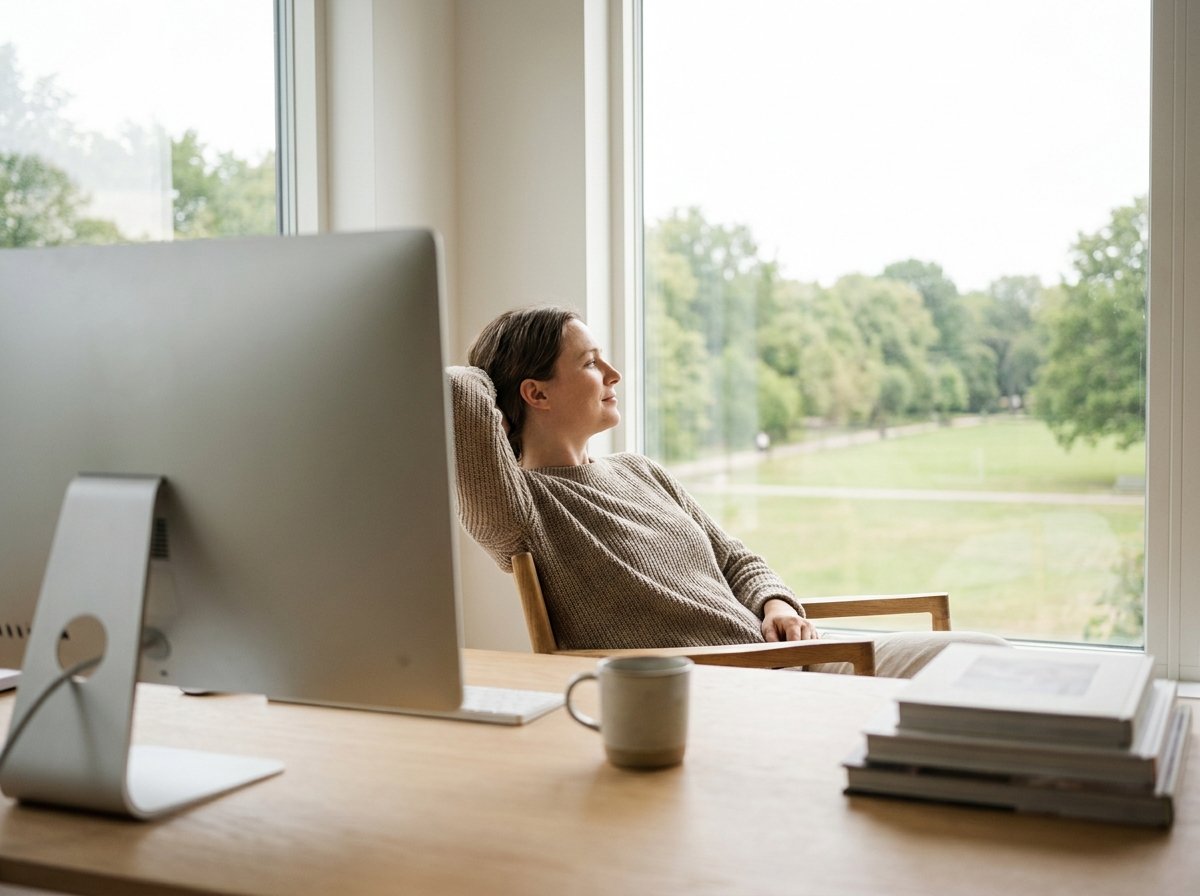
Keep your screen roughly 50 to 70 cm (20 to 28 inches) away from your face. A practical test: sit upright with your back supported, extend your arm forward—your knuckles should just barely touch the glass.

3 Position the Display Below Eye Level
Position your monitor so you look slightly downward. The top border of the screen casing should sit horizontally flush with your eye line. Looking slightly downward narrows the exposed surface area of your eyeballs, reducing tear evaporation and dry eye discomfort.
4 Match Display Brightness to Room Luminance
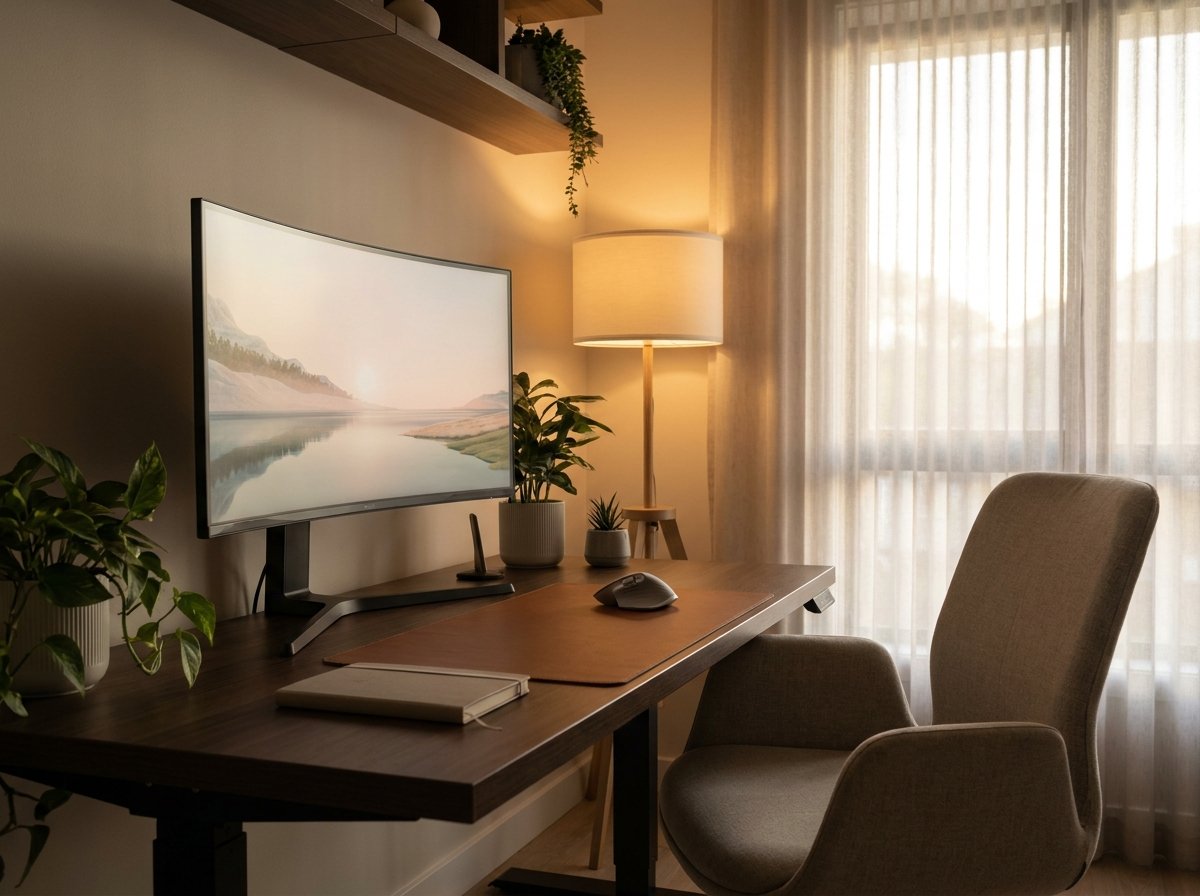
Your monitor should never look like a glowing lightbulb in a dark room, nor should it look dim like unlit paper in a bright office. If the white background of a blank document appears to glow aggressively, lower the screen brightness until it blends with ambient illumination.
5 Practice Conscious Blinking Cycles
Studies show that people blink up to 66% less frequently when concentrating on digital screens. Incomplete blinks dry out the protective tear film layer over the cornea. Make a conscious effort to complete full blinks periodically during heavy reading tasks.
Environmental Factor: Avoid sitting directly in line with ceiling fans or air conditioner vents blowing toward your face. If dryness persists despite conscious blinking, consult an eye specialist about preservative-free lubricating eye drops (artificial tears) rather than OTC redness-relief drops.
6 Increase UI Scaling Over Leaning In
Small typography forces you to crane your neck forward, destroying your posture and reducing viewing distance. Instead of leaning closer, increase your display scaling in Windows or macOS (e.g., 125% or 150%) so UI elements remain sharp and readable from a full arm’s distance.
7 Eliminate Specular Screen Reflections
Harsh reflections from overhead fixtures or sunlit windows force your pupil to constantly dilate and constrict. Reposition your desk away from direct window backlighting.
Lighting Tip: Instead of traditional desk lamps that bounce glare off the screen, consider an asymmetric monitor light bar to cast targeted illumination strictly across your keyboard.
8 Take Micro-Movement Breaks
Do not remain stationary for three to four hours at a stretch. Stand up, stretch your neck and shoulders, and walk for a glass of water every 50 to 60 minutes. Movement restores systemic blood circulation and gives your visual system a complete operational reset.
9 Calibrate Evening Color Temperatures
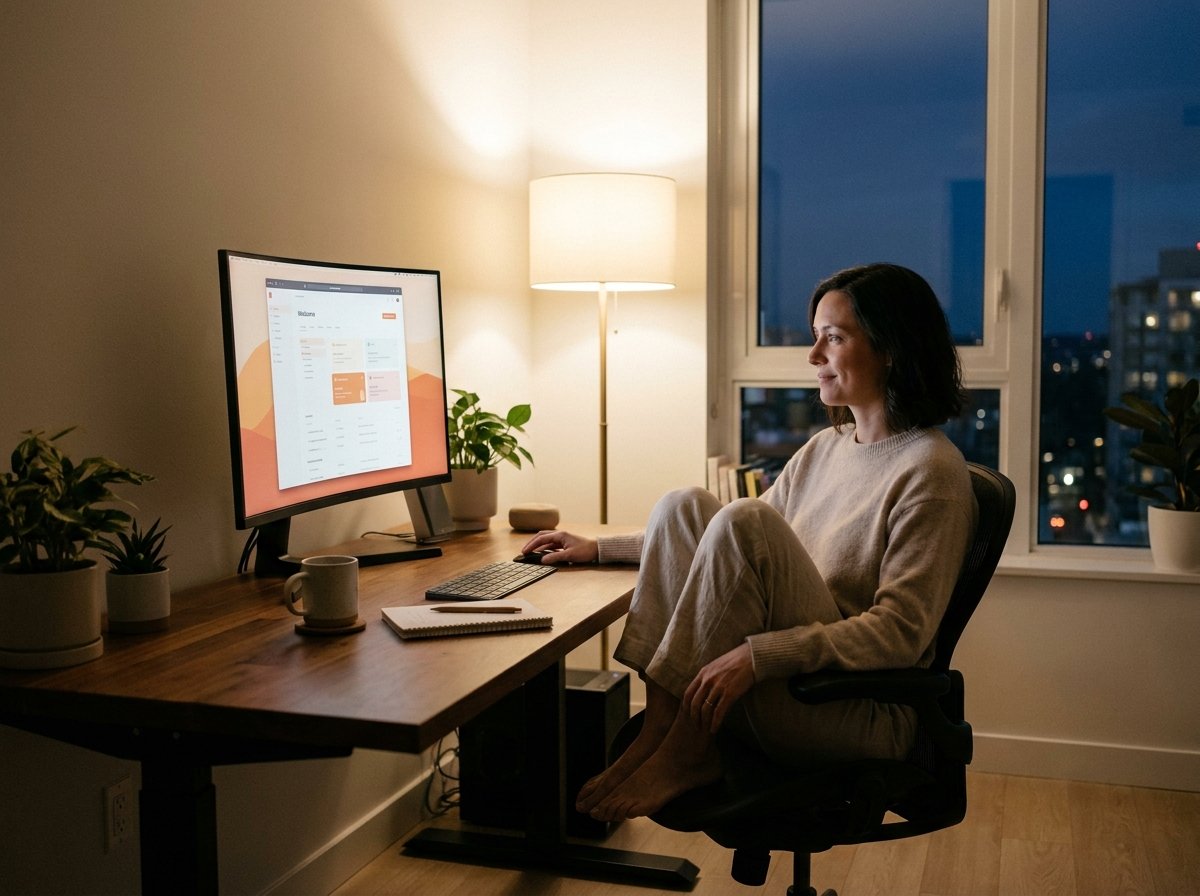
During late-evening sessions, activate warm color profiles such as Windows Night Light or macOS Night Shift. Shifting the display spectrum toward amber reduces harsh contrast and minimizes circadian rhythm disruption prior to sleep.
10 Do Not Ignore Persistent Symptoms
Occasional tired eyes after intensive deadlines are common. However, ongoing ocular pain, persistent blurry vision, or recurring migraines should never be dismissed. Schedule a comprehensive eye examination with a certified optometrist to check for uncorrected refractive errors or astigmatism.
Ultimately, learning how to protect your eyes while using a computer comes down to maintaining disciplined physical boundaries and lighting adjustments across your daily work routine.
Want to align your entire desk ergonomically? Check out our complete Minimalist Desk Setup Guide for exact desk height clearances, seating posture, and under-desk cable routing blueprints.
Frequently Asked Questions
Do blue light glasses actually protect your eyes from computers?
While blue light filters may reduce glare and improve circadian rhythm when working at night, major ophthalmic organizations emphasize that digital eye strain is primarily caused by infrequent blinking, dry air, and poor focal distances rather than blue light wavelengths alone.
Why do my eyes hurt more when using a laptop compared to an external monitor?
Laptops force an unergonomic compromise: because the screen and keyboard are attached, the display usually sits far below natural eye level. This causes neck flexion and forces closer viewing distances, accelerating ocular fatigue.